Wildbound — User guide
The complete guide to Wildbound. Walkthroughs are shown on iPhone; the app works the same on iPad and Mac. Use the contents to jump around — and the same guides are inside the app, under Settings ▸ Help & how it works.
Getting started
Wildbound asks for nothing on first launch — no account, no email, no location permission. Everything you make is yours on your own device from the start.
What it does offer first is the List Wizard: six short screens asking how you camp, what you do out there, who comes with you, and a handful of yes-or-no questions. Every answer changes what you get, and the last screen shows exactly what it is about to build so you can trim it. It stocks your library with lists and trip kits drawn from more than a hundred starter templates, so your first trip isn't a blank page.
You can skip it entirely and type your own lists instead — or run it later from the Library. Nothing it builds is fixed: rename it, gut it, ignore it.
Finding your way around
There are five places to be:
- Trips — where the work happens. Everything in Wildbound hangs off a trip.
- Spots — your own list of places worth going back to.
- Library — your trip kits, your pack lists, your task lists, and your gear.
- Upkeep — the jobs that belong to no trip at all.
- Settings — preferences, your data, and the in-app help.
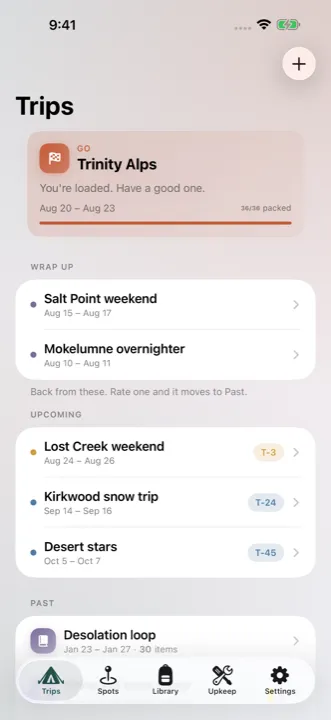
On iPhone those are the five tabs along the bottom. On iPad and Mac they're a sidebar down the left, with the trip you're working on beside it. The Trips screen itself groups what you have into Wrap up (back from these), Still to do at home, Upcoming, and Past, with the days counting down on each.
Planning a trip
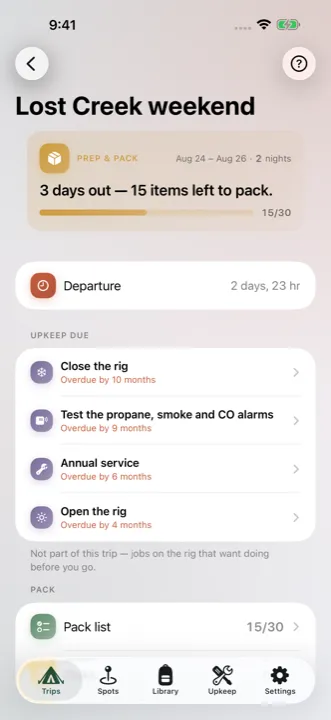
A new trip needs a name and dates. Everything else — including where you're going — is optional and can be filled in later.
Start from offers a Trip kit (a bundle of lists for one kind of trip), Your lists (pick one or several), or Empty. If you have neither kits nor lists yet it offers a Starter instead. Any of them is only a starting point — delete half of it if you like. Changing a trip never touches the list it came from unless you say so.
Say how many adults and children are coming and Wildbound fills in the amounts that scale: water, food, fuel, firewood. Children are counted for what everyone needs, and adults-only things like coffee count just the adults. Change the headcount or the dates later and the numbers follow.
Move the dates whenever you like. Reminders you already scheduled keep the day and time you gave them — they're yours, so nothing moves them but you.
Packing
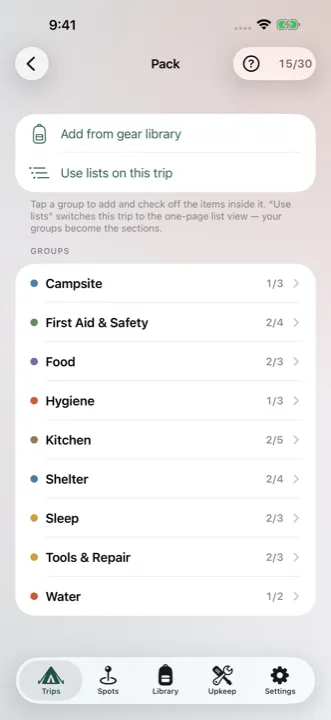
Pack is the trip's lists, kept whole and kept apart. Open one and tap a line to check it off; the count on each row is how far through it you are. Prefer everything at once? Settings ▸ While you're packing switches to one page of collapsible sections.
The two plus buttons are the whole idea. Type into the field at the bottom of a group and you get two ways to add it. The plain + puts it on this trip only. The filled + adds it here and keeps it — on the list you started from, and in your gear library — so next time it's already there. You decide in the moment whether something was a one-off or a lesson, instead of being asked about it on the drive home.
Removing: swipe an item away to take it off this trip (on a Mac, right-click it or press Delete). To also take it off the list you started from, open the item's … menu and say so there.
Tapped the wrong line? The ↺ button next to the back arrow takes back the last thing you did on that screen — a check, a delete, or handing a list to somebody.
Quantities that scale are filled in for you. Type a number by hand and it stays put; touch and hold a line (right-click on a Mac) to set it, or to hand it back to automatic.
Prep tasks & lead times
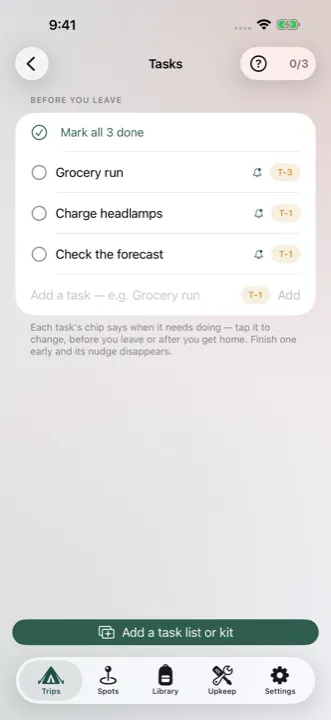
Some things can't wait until the morning you leave: a grocery run, filling the propane, charging headlamps. Those go on a task list, and each task carries a lead time — how many days before departure it needs doing.
The lead time is a fact about the job, not an alarm. Nothing fires on its own. Tap the bell on a task to schedule a reminder about it and the date is filled in from that lead time — three days out for the propane, three weeks for a service booking. Check the task off early and the reminder withdraws itself.
Some tasks also count forward from the day you get home — flushing the tanks, drying the tent. Those show up under Still to do at home on the Trips screen until you tick them.
Packing with a crew
Open a trip and tap Invite crew. You give a person's name, and Wildbound makes a link that is that person — send it however you like. There's no account, no password, and it keeps working on any device they open it on. Someone without an iPhone gets a real web page from the same link and checks things off exactly like everyone else.
- Assigning — hand any item or task to one person. Assigning pins it to the top of their list; it never hides anything from anyone. Everybody always sees the whole trip, and anybody can check off anything. Assignment also decides who a reminder is addressed to. On the Pack screen, Assign at the top of a list hands the whole list to somebody.
- Who can change what — everyone can always check things off, permission or not; that's the thing that has to work in a field with one bar of signal. Adding, renaming, deleting, and assigning stay yours unless you turn on Can edit for someone on the Crew screen.
- Keeping something off the list — any line can be marked private to you. It stays on your own list and is never sent to anyone: useful for a surprise, or for something nobody else needs to see.
- Offline — check-off can't collide. It queues on the phone and syncs the moment you're back in range.
- Ending it — the shared copy deletes itself 30 days after the trip ends. You can also delete it immediately from the Crew screen, and anyone on the crew can take themselves off.
Getting out the door
Nothing nudges you unless you asked it to. On the trip's own screen, Schedule a reminder asks three things: what it should say, when it should arrive, and — on a shared trip — who it's for. A reminder can be anything you type, or it can be tied to one of your tasks; tie it to a task and checking that task off withdraws the reminder.
Yours fire on your own device, offline, and nothing about them is sent anywhere. One aimed at a crew member is sent to their phone at the time you picked, with the words you wrote — and they can turn reminders off for that trip if they'd rather not.
From the evening before departure the trip switches to a Go view: the countdown, what's still unpacked, and the directions and arrival details for where you're headed. Fill in the site number, gate code, and check-in time on the trip and they're right there — which is what matters at a gate with no signal. Everything you need is already on the phone before you leave: the list, the coordinates, and what the cell service is like.
On iPhone, a Lock Screen countdown ticks down to departure on the day of a trip, on the Lock Screen and in the Dynamic Island. It's a Live Activity rather than a Home Screen widget — Wildbound has no widgets — and it's switched on and off in Settings ▸ Preferences.
Closing a trip out
When you get home, close the trip out. Give it a rating and a line for next time if you like — that part's just for you. Closing links what you packed to gear you already own, so your library can count how often a piece actually gets taken; it never adds gear you didn't ask it to, because a rented paddleboard shouldn't quietly become one of your possessions.
It asks nothing about your lists. They were already updated while you packed, at the moment you decided. There's no form to fill in, nothing to grade, and no question waiting for you when you're tired and driving home. A closed trip becomes a log entry — where you went, when, what you took, and anything you wrote down.
Your lists
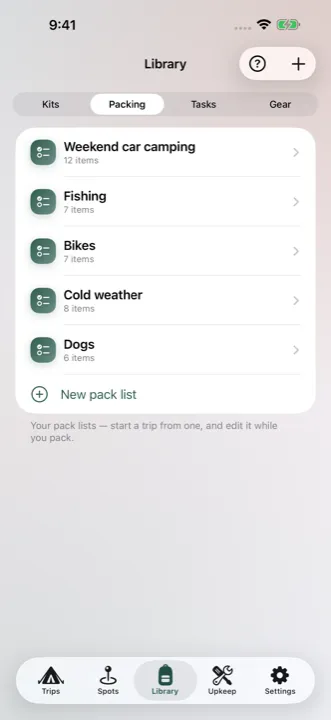
A list is a named set of things you pack from. Lists live in the Library, and you start trips from them. There are two kinds, each with its own tab there: a pack list for what you take, and a task list for what you do before you go.
Lists are flat on purpose. If you end up with several related ones, file them under a category — a folder for lists, not a heading inside one.
Building one: make an empty list and type into it, or let the List Wizard lay out a set to start from. Adding gear from your library keeps a live link, so renaming that gear later updates every list using it at once. Typing a name instead is fine — that line is just a name, and the list owns it.
Tap any line for Edit, Add to gear library, and Delete. Use the top Edit button to reorder or delete several at once; on a Mac there's no Edit button, and each line's own menu has Move up and Move down.
They improve while you pack, not afterwards. When you add or remove something you say right then whether it's just this trip or for next time too. Nothing is ever changed on your behalf.
Trip kits
A kit is a named bundle of lists — "Fly fishing", "Skiing", "Kids and the dog". Start a trip from the kit and every list in it is laid out at once, instead of picking the same five lists every time. Kits sit at the front of the Library, because they're the fastest way into a trip.
A kit is a bookmark, not a copy. It stores which lists it uses and nothing about what's on them, so editing a list updates every kit pointing at it instantly, and deleting a kit leaves your lists untouched. The flip side: a list you open from inside a kit is that list, everywhere. Wildbound says so before you edit one, and offers to give the kit its own copy instead if that's what you meant.
Order matters a little — the first list to name a group decides where that group sits on the trip. And if you delete a list a kit points at, the kit says so ("2 lists · 1 missing") rather than quietly packing you fewer things than it promised.
Your gear library
The Library has three parts, and the buttons across the top switch between them: Kits bundle lists, Lists are what you pack from, and Gear is the equipment you actually own.
- Filling it — Add from the catalogue opens the several thousand things Wildbound already knows the names of. Search it or browse by category, tick what you own, and add them in one go. Anything it's never heard of, type in and it's yours. Nothing lands in your library unless you put it there.
- Why link a list to your gear — a list line pointing at gear you own shows that gear's current name, so renaming a piece once updates every list at the same moment. Your library also counts how many trips a piece has been packed on, which is a fair answer to what earns its space.
- Categories — yours to control. Rename one and its gear moves with it; delete one and its gear falls back to General rather than disappearing.
- Weight — every piece can carry an optional weight, off unless you turn it on. It belongs to the gear itself, so setting it once shows it on every list that uses that piece. Worth it if you count grams, ignorable if you don't.
Your spots
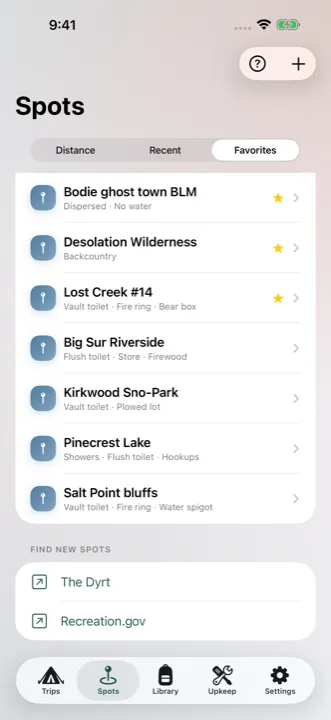
A spot is somewhere worth going back to. Save where it is, what the cell service is like by carrier, a booking link, and notes on anything you'd want to know before booking it again. Sort by Distance, Recent, or Favorites.
Site numbers and gate codes belong to a trip, not to a spot — they change every booking. You'll find those on the trip itself, where they appear on the Go screen the day you leave.
Distance is measured from your home base, which you set in Settings. That calculation happens on your device; your home address is never sent anywhere.
Finding somewhere new: Add a spot ▸ Find a spot searches campgrounds, parks, forests, and lakes and saves the result with its details filled in. For browsing further afield, a Find new spots section at the bottom of the Spots screen links out to The Dyrt and Recreation.gov — Wildbound has no campground database of its own and isn't trying to build one. What it keeps is your list.
Your spots are yours. There's no feed, no reviews, and nothing you save is visible to anyone else — deliberately. Publicising a fragile place is how it gets ruined.
Upkeep
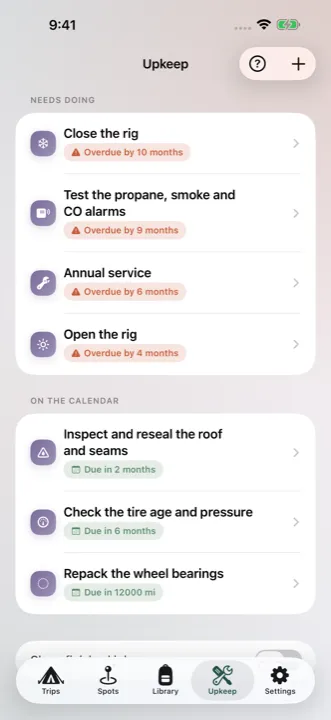
Winterizing the rig, repacking the wheel bearings, the annual service. None of it belongs to a trip, so none of it can be timed off a departure date. Upkeep jobs run on their own clock — and there are five to choose from:
- Every so many months — counts from the last time you did it, so it slides if you run late.
- Every year, in a month — doesn't slide. A job set to October is due in October either way. You pick the month, which matters if you're in the southern hemisphere or store the rig in summer.
- Every so many trips and every so many nights out — count the trips you've closed out since you last did the job.
- Every so many miles or hours — measured against a reading you type in. The app can't see your odometer, so the job says when the reading was taken.
- Once, on a date — a one-off. Tick it and it's finished.
A job can carry a list of steps and a list of supplies. Mark it done files the date — and the reading, if it runs on one — into the job's history, re-arms the clock, and clears the ticks for next time.
The intervals we ship are a starting point. They're common figures, not advice about your rig: your maker's manual is the authority, and every interval is yours to change.
Settings reference
Everything the Settings tab contains:
- Wildbound Plus — whether crew sharing is active, and what it costs if it isn't.
- Tip jar — entirely optional, and it unlocks nothing. The app doesn't behave differently either way.
- Home base — set it on the map or type decimal degrees. It's the origin for distance-from-home on your spots, and it's stored on this device.
- Preferences:
- Appearance — Match System, Light, or Dark.
- Metric — switches distances and weights.
- Lock-Screen countdown — the departure timer on the Lock Screen and Dynamic Island on the day of a trip.
- While you're packing:
- Pack lists — Open each list (the default: one list at a time, so the screen is the length of the job in front of you) or All on one page (every list as a collapsible section).
- Hide what's packed — leaves only what's left. Every list still says how many it's holding back, and shows them again in a tap.
- Close a finished list — checking the last item drops you back to the trip's lists.
- Crew & Friends — the trips you're hosting or have joined, each with its invite link to hand out again. It says Solo for now until you share one.
- Your data — Export my data writes everything on this device (gear, spots, trips, logs) to a single plain file you can keep, read, or move elsewhere. Invite links and crew keys are left out on purpose: those are working keys to a trip, not data about you.
- About Wildbound — Help & how it works (the same guides as this page, offline and in the app), the support and privacy links, the version, and who made it.
What it costs
Using Wildbound on your own is free, with no time limit and no nagging. Planning, packing, your gear library, your spots, Upkeep, reminders, and iCloud sync are all free, always — and so is reading a trip and exporting your data, whatever else is true.
Sharing a trip with a crew is $4.99 a year, and the first month of it is free — starting the first time you share, not the day you install. That's the one part with a server behind it, which is the reason it's the one part that's sold. If you join someone else's trip you never pay anything, and you don't need the app: a guest can use the web page the invite link opens.
Across your devices
Sign in to iCloud and Wildbound keeps your gear, spots, trips, and logs the same across your devices, through your own private iCloud storage — nobody else can see it, us included. It isn't instant: changes travel when the device has a moment and a connection, so give it a few seconds after a big edit. If one looks out of date, open the app there and leave it in the foreground for a few seconds.
iPhone
The field phone, and the one that works with no signal — the whole app in five tabs, plus the Lock Screen departure countdown.
iPad
A sidebar beside the trip you're working on — the bigger screen for building lists and laying out a trip before you go.
Mac
Runs on Macs with Apple silicon. In the Mac App Store, look under the iPhone & iPad Apps tab — a search under Mac Apps comes back empty. Right-click does what touch-and-hold does on a phone.
Tips & gestures
- Every row has a … menu with everything you can do to it — trips, trip logs, spots, gear, categories, kits, saved lists, pack items, and prep tasks — including Move up and Move down without opening Edit. Swipes still work if you prefer them.
- The ↺ button beside the back arrow undoes the last thing you did on that screen.
- The filled + when you add an item keeps it for next time; the plain + is this trip only.
- Touch and hold a quantity (right-click on a Mac) to set it by hand, or to hand it back to automatic.
- Tap the bell on a prep task to schedule a reminder with the date already worked out from its lead time.
- On a shared trip, Assign at the top of a list hands the whole list to one person in a tap.
- Every screen has a ? button that opens the help for that screen, offline.